
The AnyPress app for Make creates and manages your clients’ sites as scenario modules. Watch Site Events starts a scenario when a site is ready, fails, is suspended and more.
Add the app to Make #
The AnyPress app is shared by invite while it waits for its spot in the Make app directory. Sign in to Make, then open the AnyPress invite link and install the app. AnyPress then shows up when you add a module to a scenario.
Connect your key #
- Sign in at app.anypress.io and open API keys. Make a key and copy its secret: it is shown once.
- In Make, add any AnyPress module and choose Create a connection.
- Paste the key into API Key and the secret into API Secret.
With a partner key, also fill in Storefront ID, and add one connection for each storefront you work on. With a storefront’s own key, leave it empty.
Create a site #
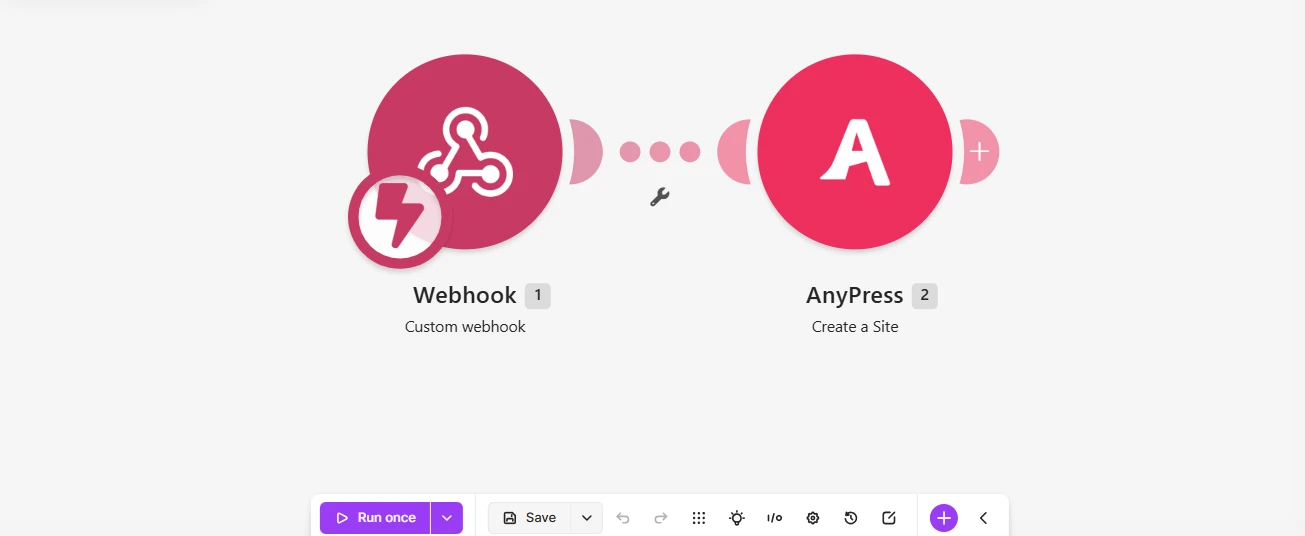
- Add Create a Site.
- Fill in Site Name, and map Client Email from the trigger before it to make their WordPress login.
- Put the deal, contact or order number in Your Reference. If the scenario runs twice, the second run gets the same site back instead of building another.
- Pick the Size, which Starting Site Group to copy, and the client’s own domain if they have one.
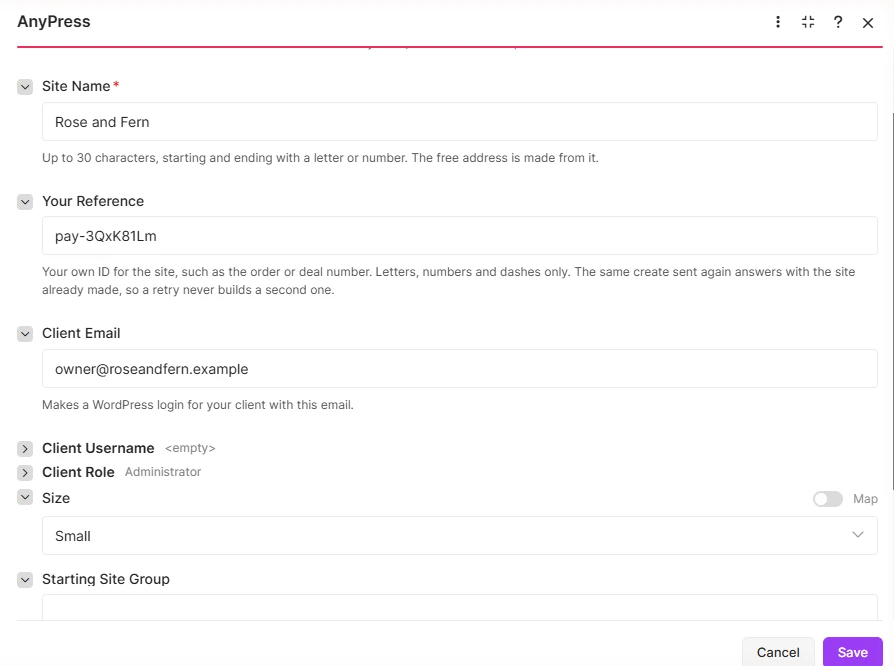
The module answers at once, while the site is still being built. Use Watch Site Events to hear when it’s ready.
Get, suspend, resume or delete a site #
Add Get a Site, Suspend a Site, Resume a Site or Delete a Site. Choose whether to find the site by your reference or its site ID, and map it. Suspend backs the site up first unless you turn Back Up First off. Delete keeps its backups, so it can be restored.
Start a scenario when a site is ready #
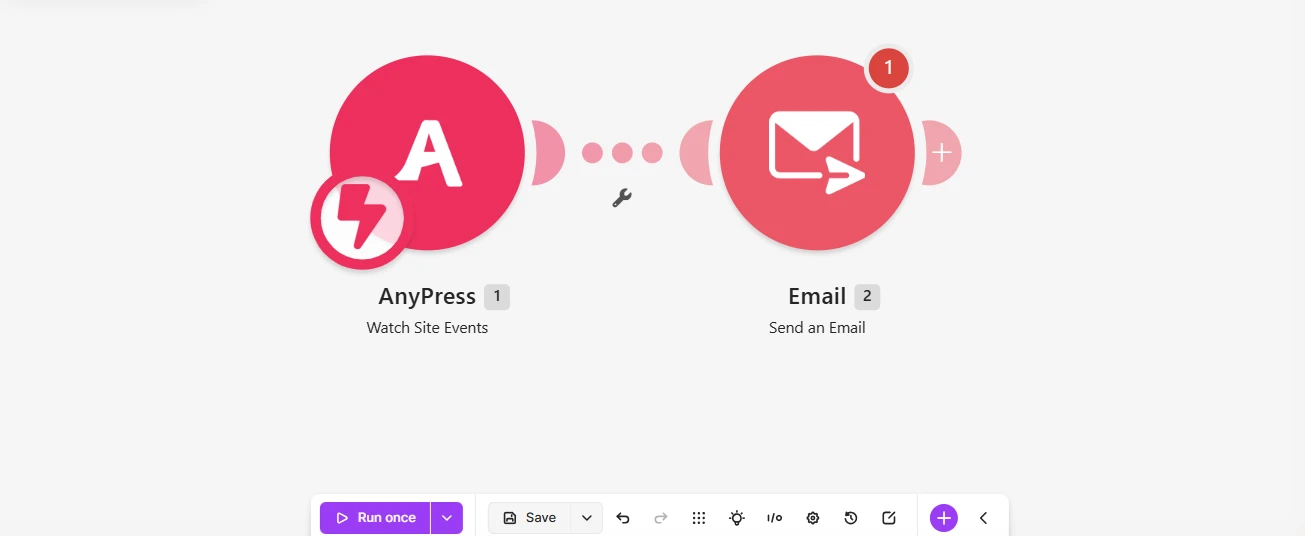
- Start a scenario with Watch Site Events and choose Create a webhook.
- Pick the Events. Site ready is picked for you.
- Save. The webhook registers itself with AnyPress, and removes itself when you delete it.
Each event comes with the site, read back from AnyPress with your own key, and its address. Confirmed With AnyPress is yes when the site was found; add a filter on it so only real events carry on. It is no for a deleted site.
Questions? Write to support@anypress.io.
Watch it #
More videos: Video guides.


